 Docs
Route a lead with Zapier
Route Lead is the EnforcedFlow app’s action in Zapier. It assigns a lead to the next agent in a routing group and notifies the agent. Your Zap gets the agent and the lead back for its next steps.
A Zap with Route Lead has at least two steps: the trigger where your leads come in (a form, an inbox, a CRM), and Route Lead, which sends each lead to your routing group. If you notify agents some other way than email (step 2), add steps after Route Lead that reach the agent.
1. Pick Route Lead in Zapier
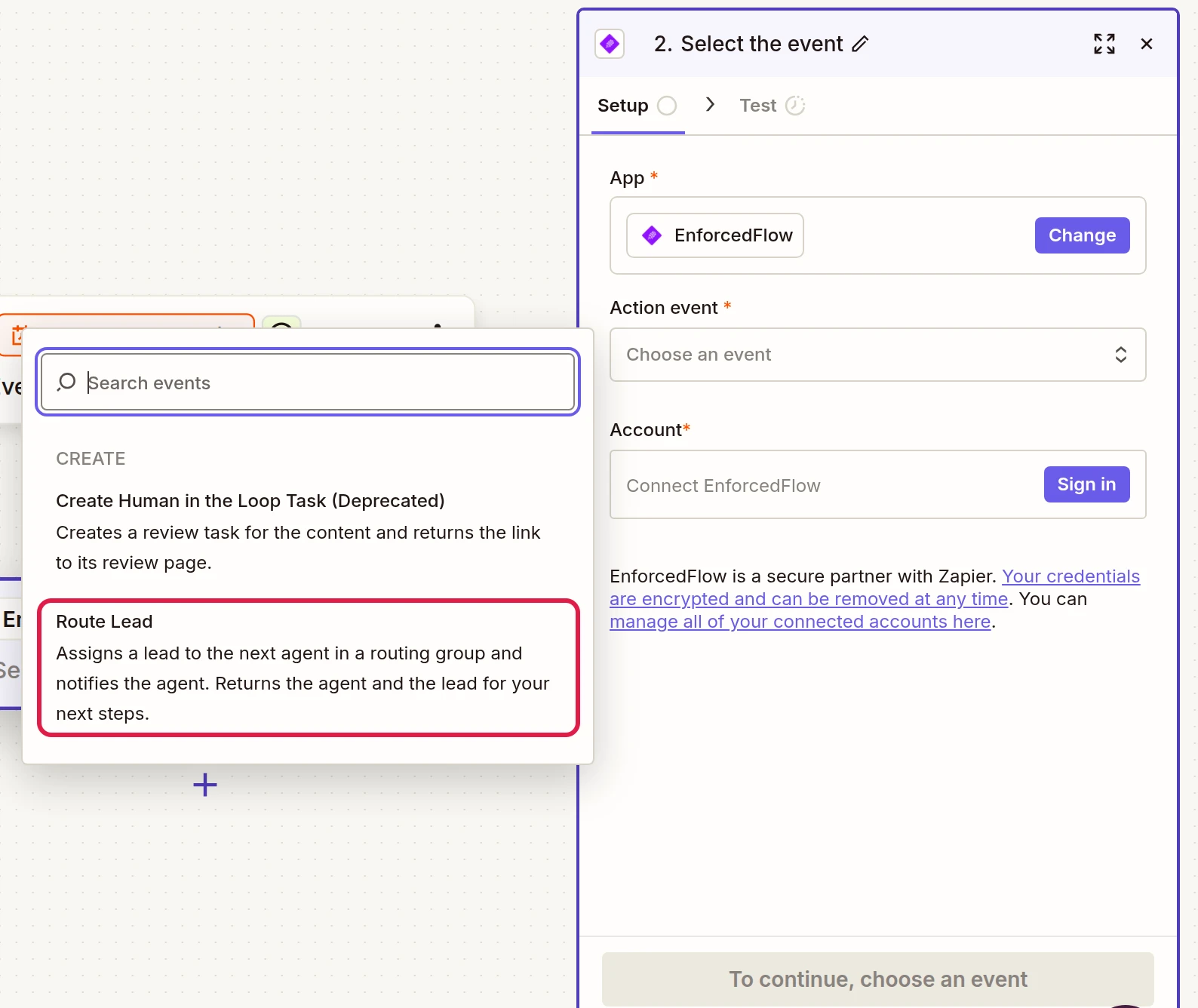
Section titled “1. Pick Route Lead in Zapier”- In your Zap, add an action step and search for EnforcedFlow.
- Choose Route Lead as the action event.
- When Zapier asks you to connect your EnforcedFlow account, it asks for an API key. New to EnforcedFlow? Follow Create a free account under the key’s box.
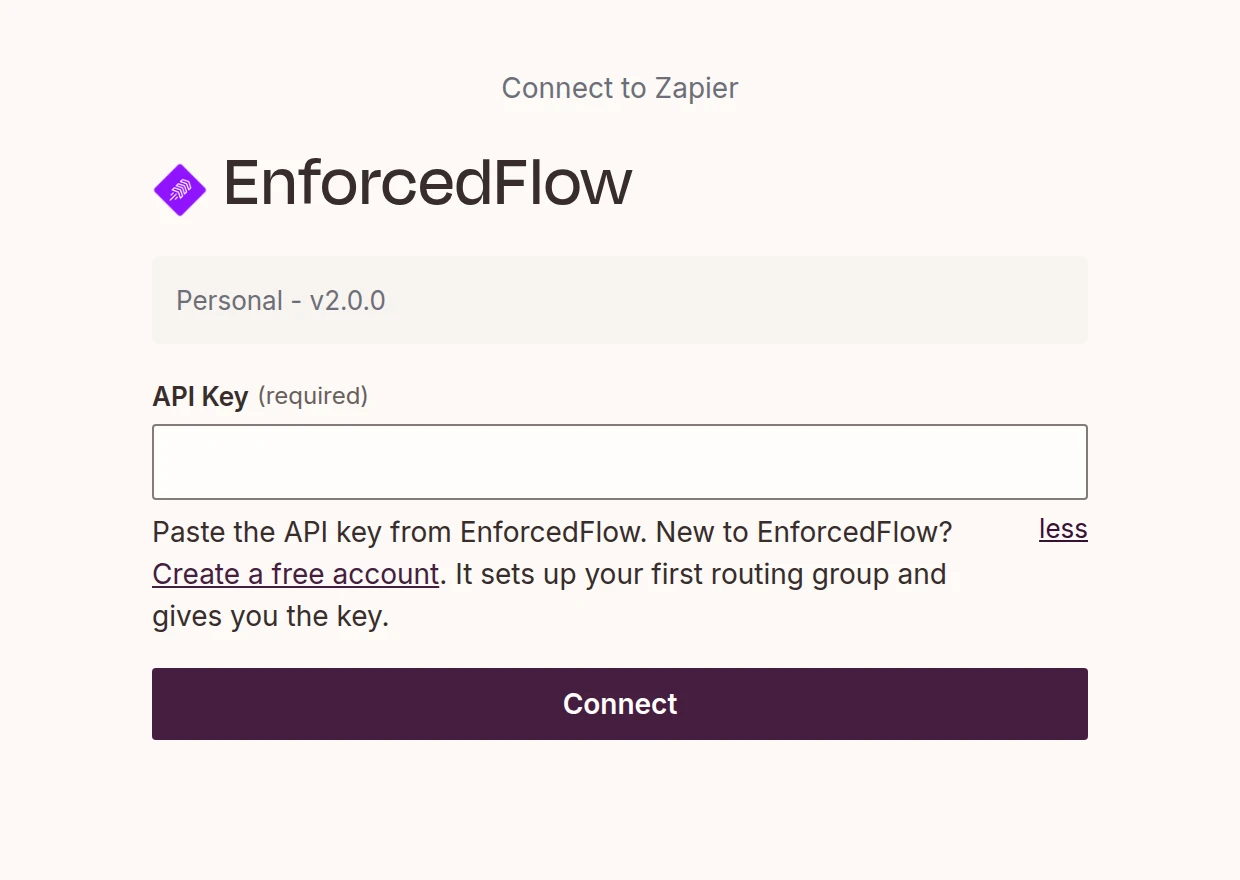
The link opens EnforcedFlow’s sign-up page. Once you’ve signed up, it sets up your first routing group with you, then gives you the key.
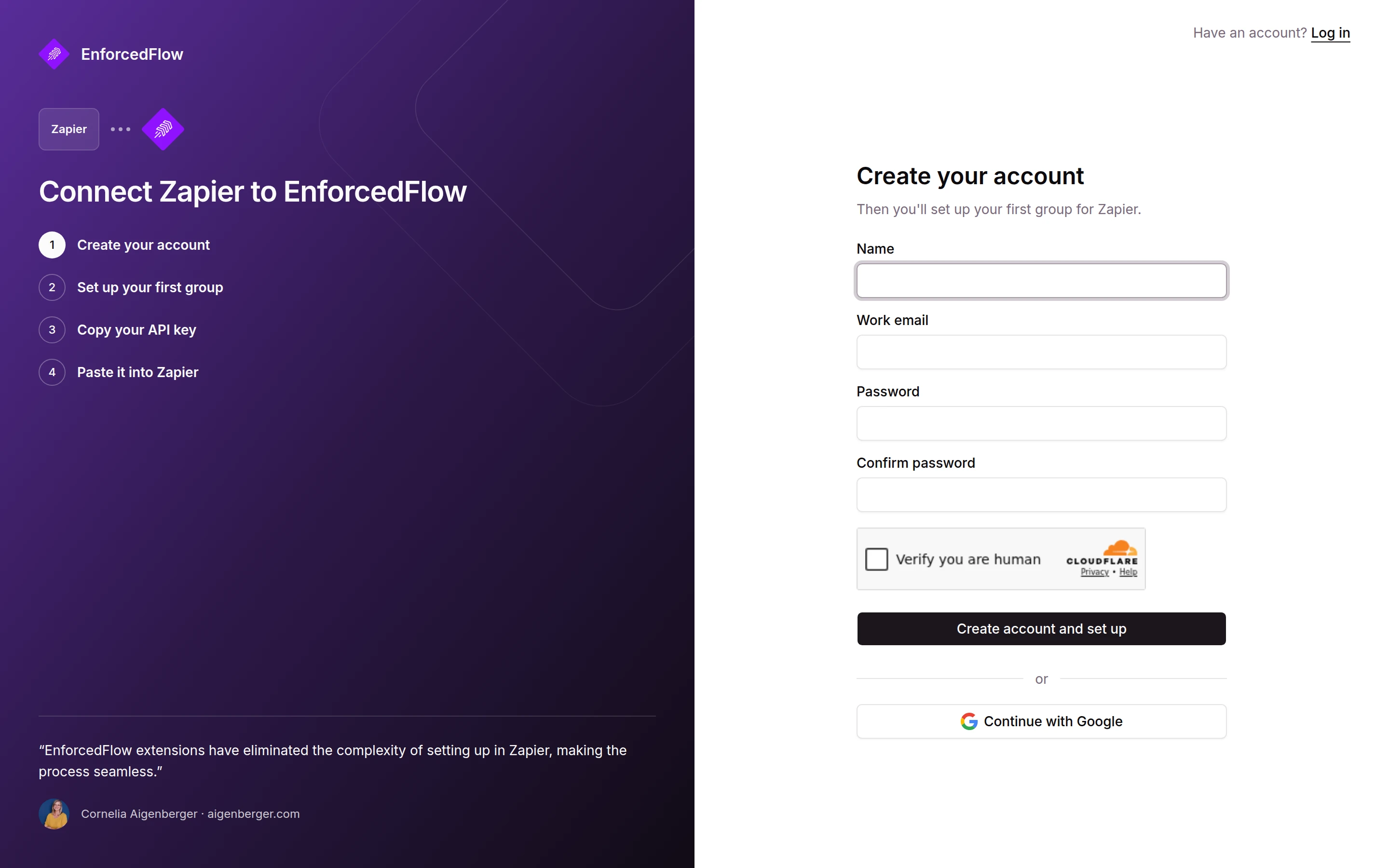
2. Set up your first group
Section titled “2. Set up your first group”The wizard, Set up your first group, takes three steps.
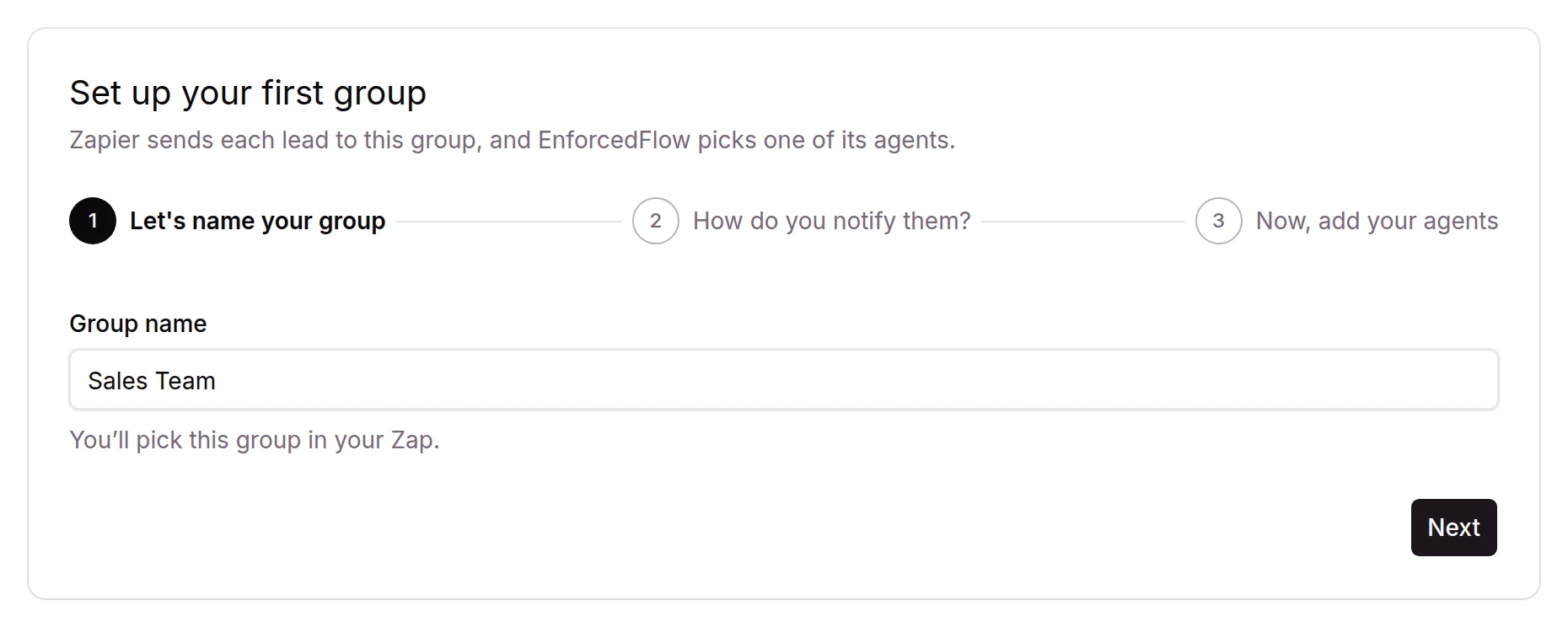
1. Let’s name your group. Give the group a name, such as Sales Team. You’ll pick it in your Zap.
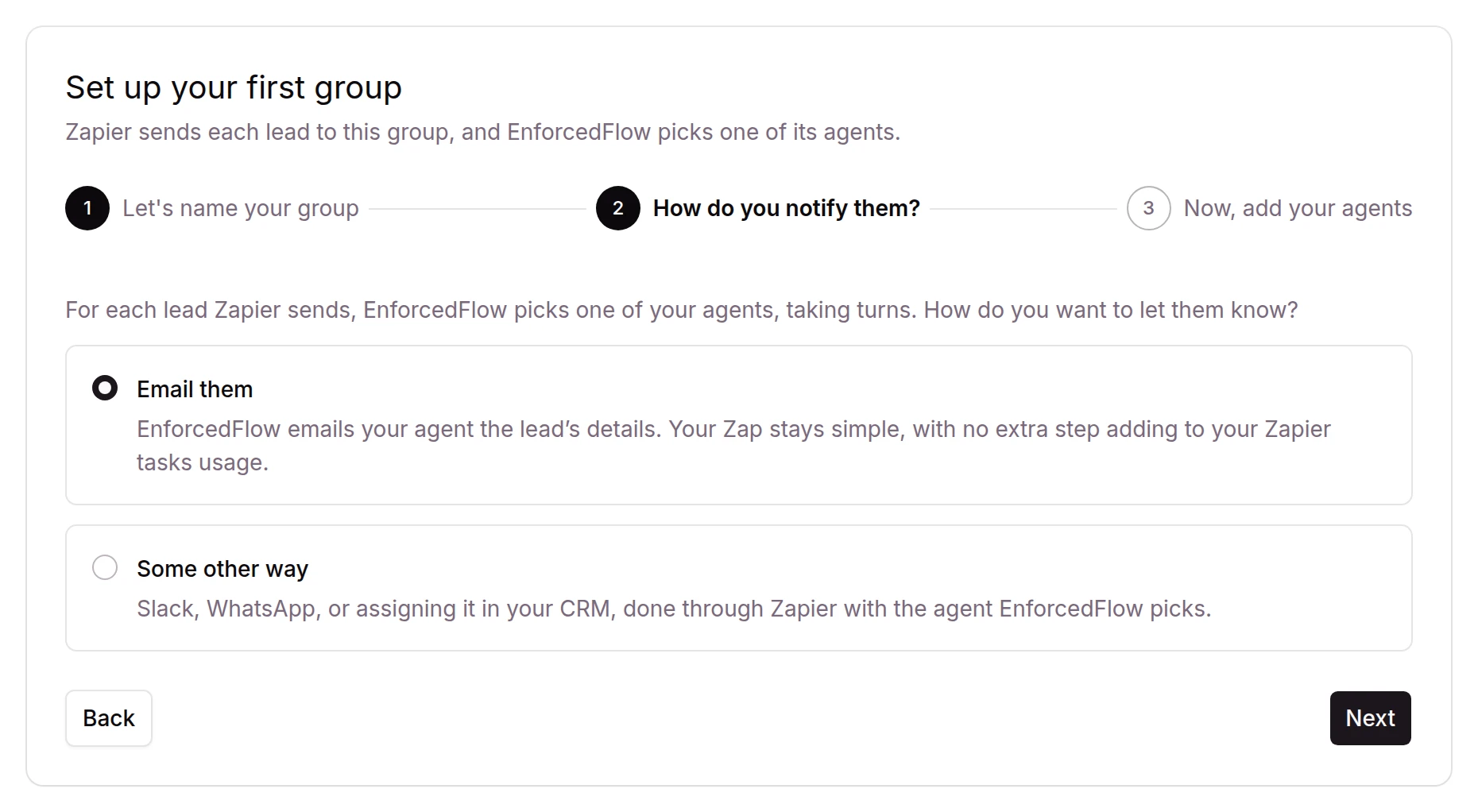
2. How do you notify them? Each time your Zap sends a lead, EnforcedFlow picks one of your agents, taking turns. Choose how the agent hears about it:
- Email them: EnforcedFlow emails the agent the lead’s details. Your Zap stays simple, with no extra step adding to your Zapier tasks usage. See what the agent’s email looks like.
- Some other way: Slack, WhatsApp, or assigning the lead in your CRM, done by your Zap’s next steps with the agent EnforcedFlow picks.
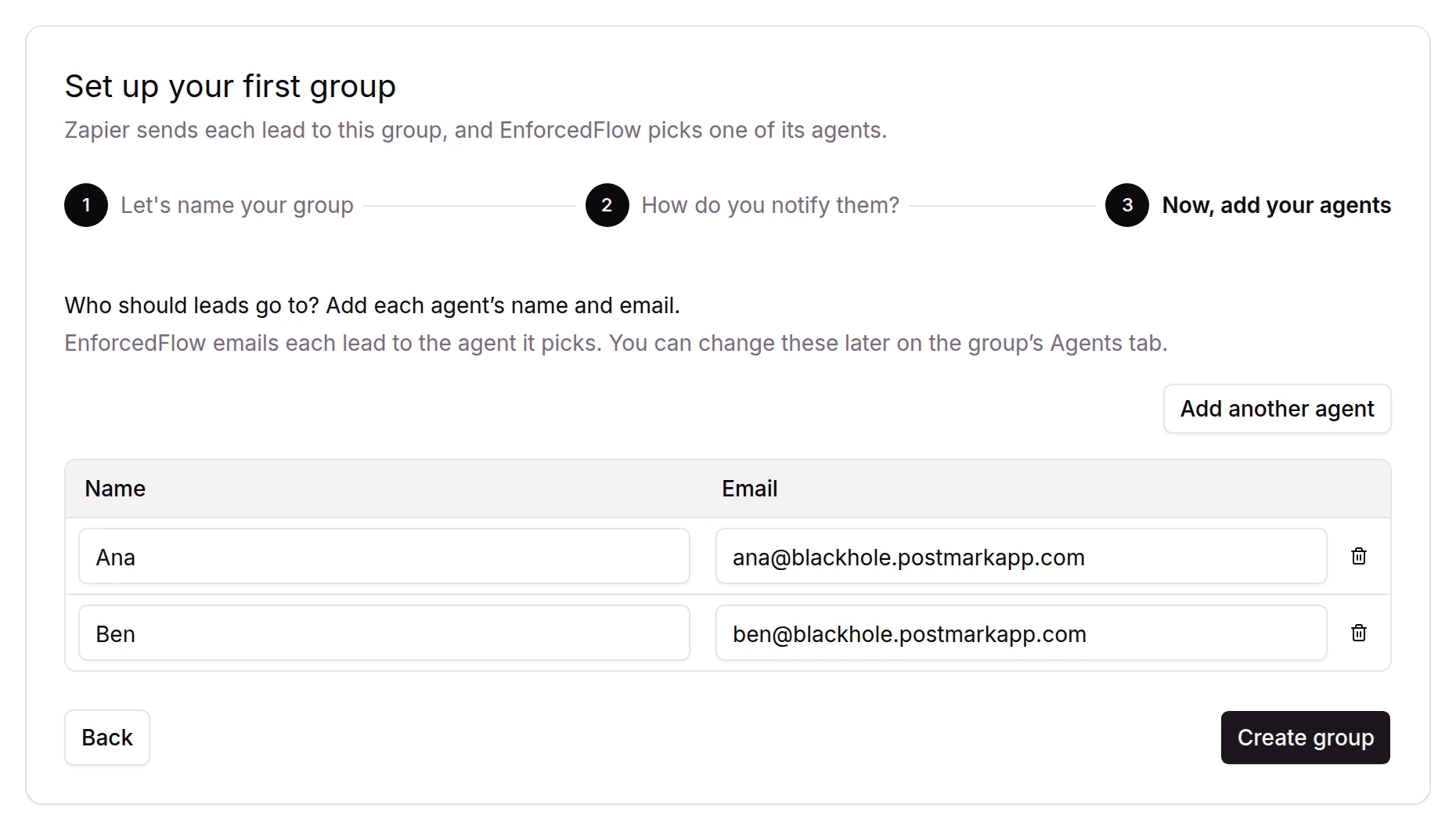
3. Now, add your agents. Add each agent’s name.
- With Email them, add each agent’s email too.
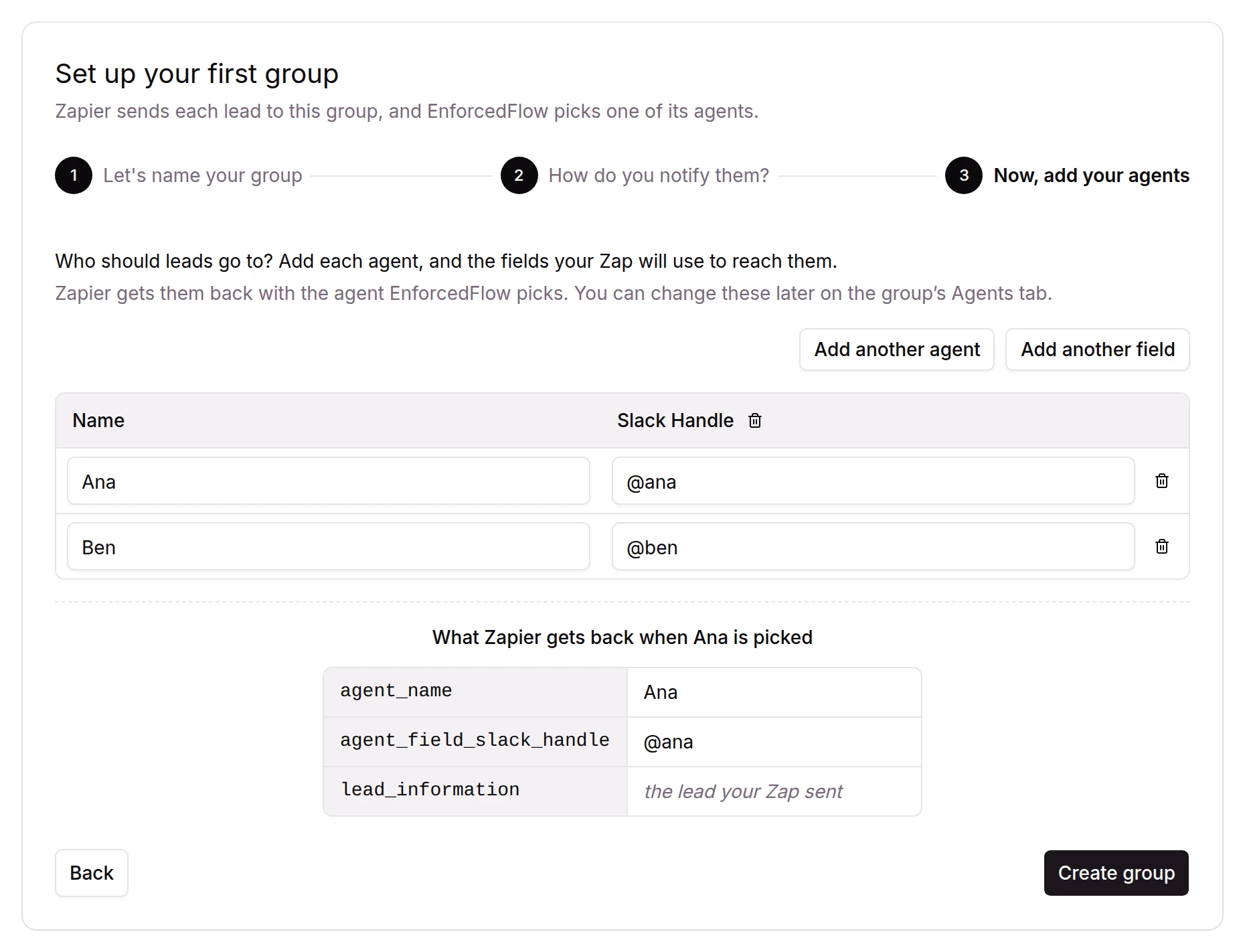
- With Some other way, add the fields your Zap needs to reach each agent: Add a field, give it a name such as Slack handle or HubSpot owner ID, and check what it will be saved as (
slack_handle,hubspot_owner_id). Then fill in each agent’s value. Under the table, a preview shows what Zapier gets back when an agent is picked.
Then click Create group. You can change the group’s name, its agents and their fields later in EnforcedFlow.
3. Paste your key into Zapier
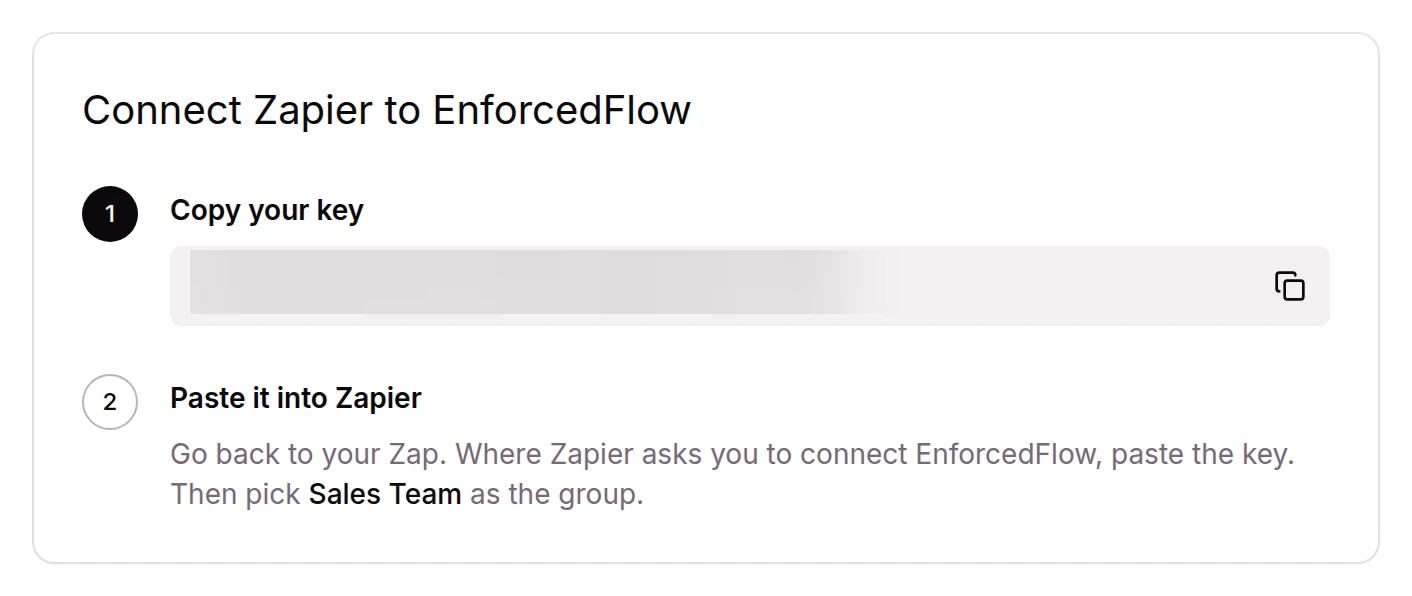
Section titled “3. Paste your key into Zapier”Next, EnforcedFlow shows Connect Zapier to EnforcedFlow:
- Copy your key.
- Paste it into Zapier. Go back to your Zap and paste the key where Zapier asks you to connect EnforcedFlow. The page also names the group to pick in the next step.
4. Set the Routing group and the Lead information
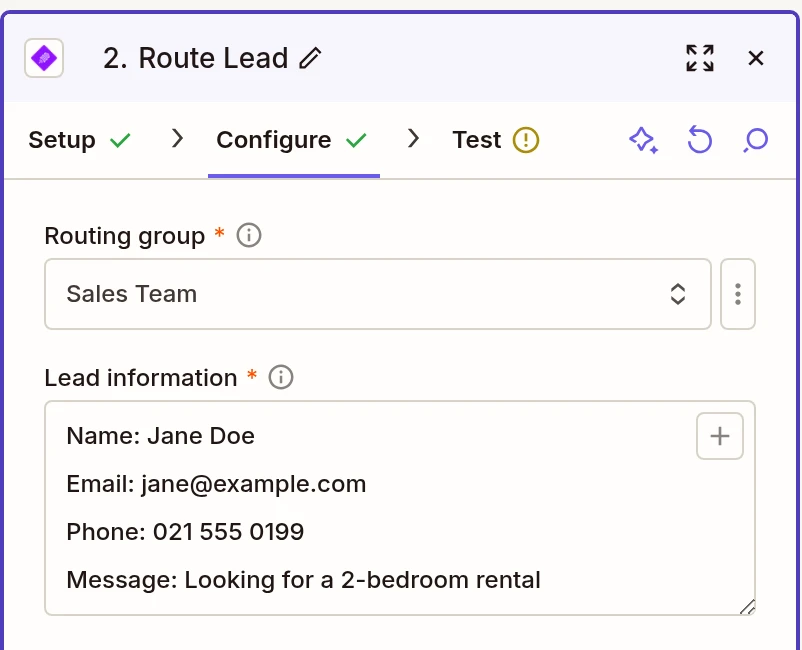
Section titled “4. Set the Routing group and the Lead information”Back in the Route Lead step, fill in its two fields:
- Routing group: pick the group you just made. The list shows every routing group in your account.
- Lead information: map in everything the agent should know about the lead, from your trigger’s data. Any format works: a list of details, a whole message, or every field of a form. See what to send.
5. Test the step
Section titled “5. Test the step”Click Test step. The test sends the lead to the group for real: EnforcedFlow picks the next agent, as it will for every lead the Zap sends, and if the group is set to Email them, it emails that agent.
Zapier then shows what Route Lead returns:
| Key | Zapier shows it as | What it holds |
|---|---|---|
agent_name | Agent Name | The name of the agent EnforcedFlow picked. |
agent_field_<key> | Agent Field …, from the key | One for each of the group’s agent fields, holding the picked agent’s value, such as agent_field_email (Agent Field Email) or agent_field_hubspot_owner_id (Agent Field Hubspot Owner Id). |
lead_information | Lead Information | The lead information, exactly as your Zap sent it. |
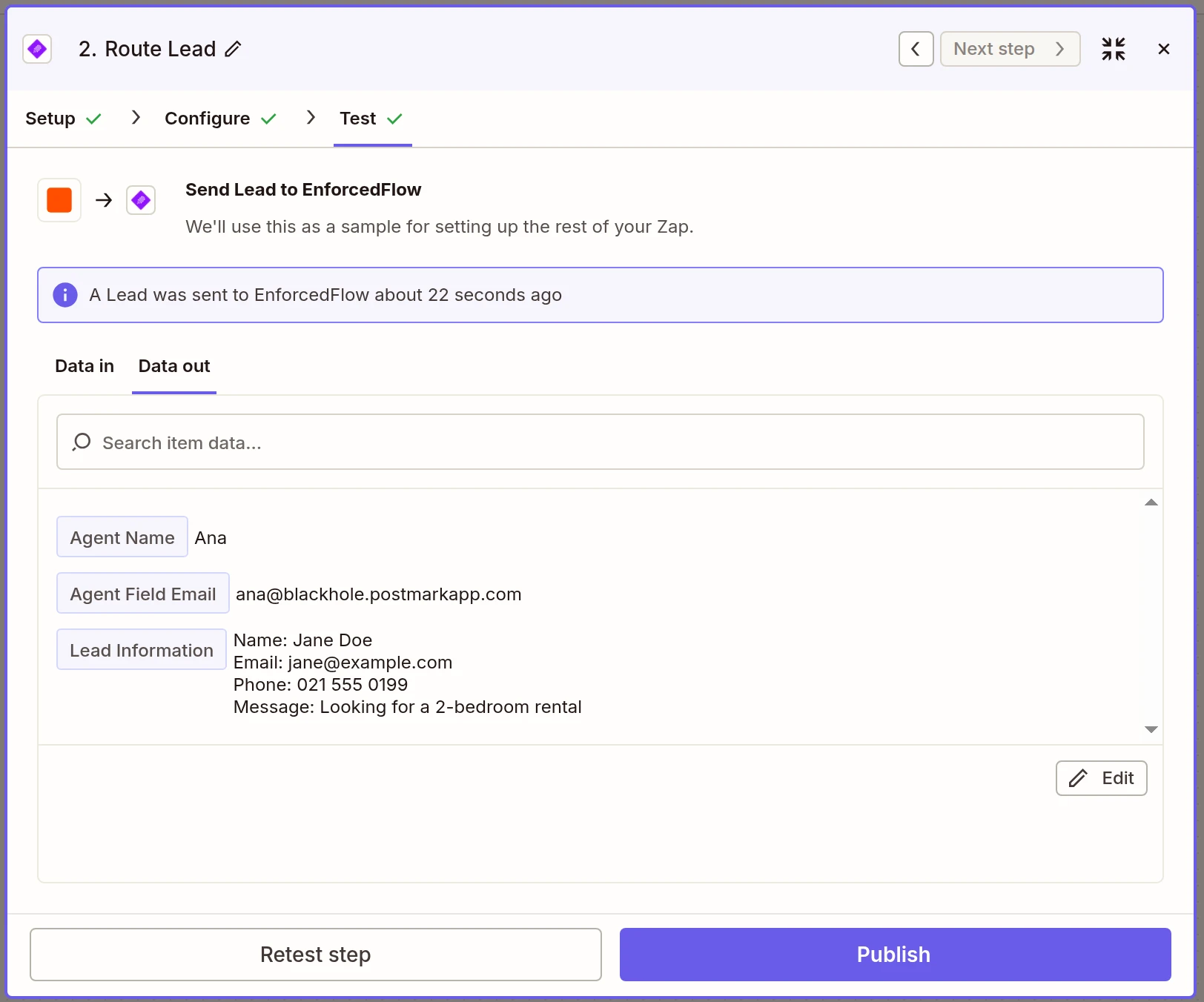
Use these in the steps after Route Lead. For example, send a Slack message to the agent’s agent_field_slack_handle with the lead_information, or assign the deal in HubSpot to agent_field_hubspot_owner_id.
Lead information
Section titled “Lead information”Lead information is free text: send the lead in whatever shape your trigger has it. EnforcedFlow keeps it exactly as sent and gives it, unchanged, to the agent and to your Zap’s next steps. Send enough for the agent to act: at least the lead’s name and a way to reach them.
A list of details
Section titled “A list of details”Type a label for each detail, and map the value from your trigger after it:
Name: Jane Doe
Email: jane@example.com
Phone: 021 555 0199
Message: Looking for a 2-bedroom rental in Ponsonby
A pasted contact message
Section titled “A pasted contact message”Map the whole message from your inbox or contact form, as it arrived:
Hi, I saw your listing for the 2-bedroom apartment on Ponsonby Road.
Is it still available, and could I see it this Saturday morning?

Thanks,
Jane Doe
021 555 0199
A form with many fields
Section titled “A form with many fields”Map every field of the form, one per line, so the agent sees all of it:
Name: Sam Patel
Email: sam.patel@example.com
Phone: +1 415 555 0142
Company: Patel Dental
Service: Website redesign
Budget: $5,000 to $10,000
Timeline: Within 3 months
Preferred contact: Phone, weekday afternoons
How did you hear about us: Google search
Message: We need a new site with online booking.
Lead information can’t be empty, and it holds up to 10,000 characters: send the lead’s key details, not a whole email thread.
What the agent’s email looks like
Section titled “What the agent’s email looks like”When the group is set to Email them, EnforcedFlow emails each lead to the agent it picks, at the agent’s email address:
- Subject: New lead from your group’s name
- From: the name you set as Notification sender name on your Profile, or EnforcedFlow if you leave it blank
- Reply-To: your account’s email, so the agent’s reply reaches you
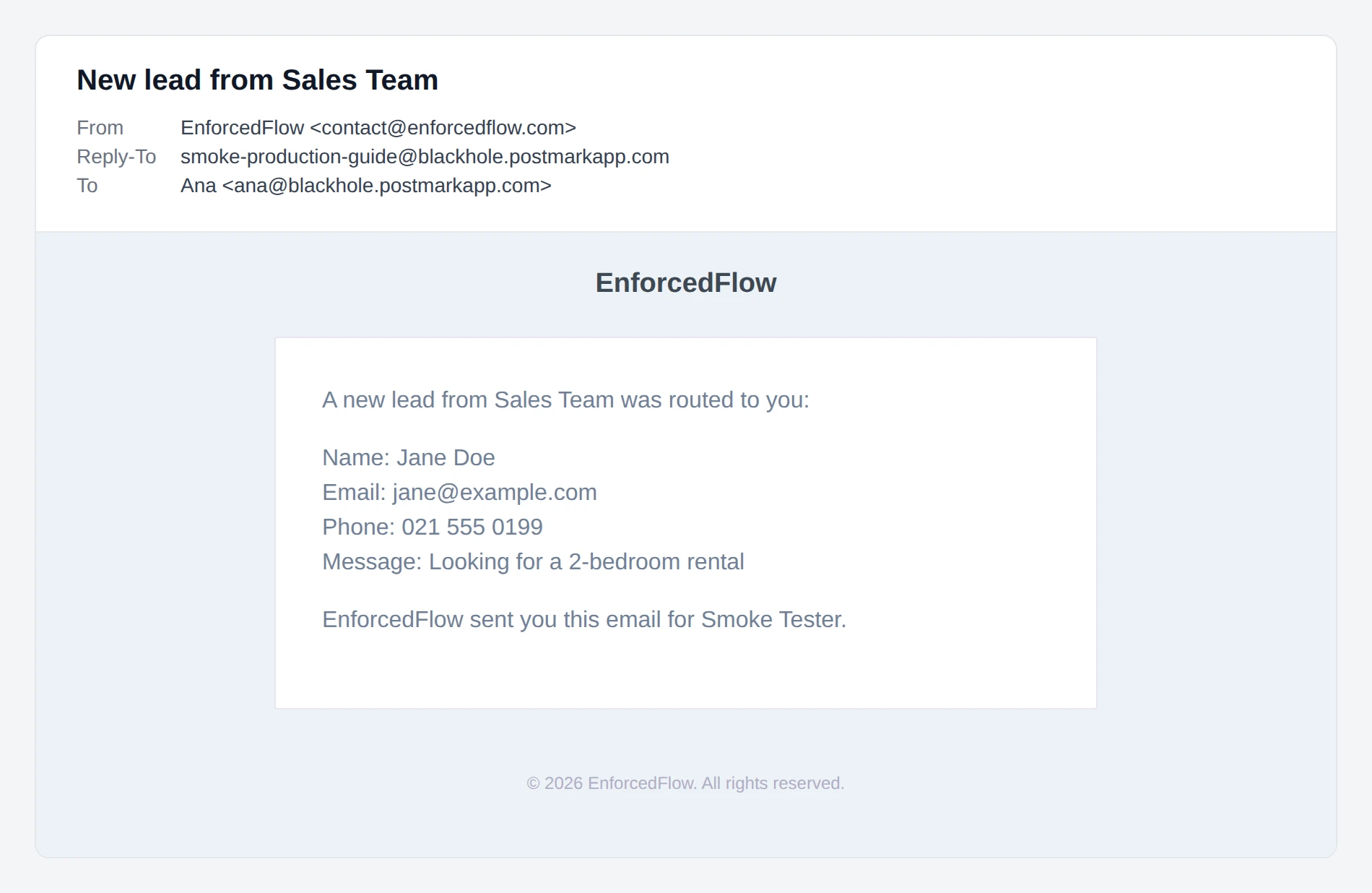
Under an EnforcedFlow heading, it says A new lead from your group’s name was routed to you:, then the lead information, then EnforcedFlow sent you this email for your account, and a © EnforcedFlow footer.
The lead information appears exactly as your Zap sent it, line breaks kept. The last line names your Notification sender name, or the Name on your Profile if you leave it blank. The email has no link to sign in: the agent doesn’t need an EnforcedFlow account. An agent with no email address still gets leads, but isn’t emailed.
If the test fails
Section titled “If the test fails”- “Routing group not found”: pick one of your routing groups from the list again; the group may have been deleted.
- “No agent in your group can take this lead right now”: no agent of the group is turned on, none is within their business hours, or none matches the lead’s details. Turn an agent on, check business hours, or check the group’s fields and the agents’ values, in EnforcedFlow.
- “Lead information is empty”: map at least one detail of the lead into Lead information.