 Docs
Connect Claude
EnforcedFlow’s connector lets Claude set up and run your lead routing with you. Tell Claude how your leads should be routed, and it builds the routing group, its fields and its agents, tests who a lead would go to, and shows you how to send your leads to it.
Claude acts as you: it can do what you can do in the dashboard, and nothing until you sign in to EnforcedFlow and allow it. You can disconnect it at any time.
It works in claude.ai, Claude Desktop, Claude’s mobile apps and Claude Code.
Before You Start
Section titled “Before You Start”You need:
- An EnforcedFlow account (sign up here)
- A Claude account. Connectors work on every Claude plan; on the Free plan you can add one custom connector
EnforcedFlow’s MCP server URL is:
https://app.enforcedflow.com/mcp
You don’t need an access key, a client ID or a client secret: you sign in to EnforcedFlow in your browser instead.
Connect in claude.ai or Claude Desktop
Section titled “Connect in claude.ai or Claude Desktop”Connect EnforcedFlow from Claude’s Connectors Directory, in a click. You connect once, in claude.ai or Claude Desktop, and it’s there in both.
From the Connectors Directory
Section titled “From the Connectors Directory”Open EnforcedFlow in Claude’s Connectors Directory and select Connect to Claude. Then sign in to EnforcedFlow and click Allow (see Sign In and Allow).
To find it in Claude yourself:
- Go to Customize > Connectors > Discover. In Claude Desktop, select Customize in the sidebar, then Connectors, then Discover
- Enter EnforcedFlow in Search connectors, then select EnforcedFlow to open its page
- Select Connect to Claude
- Sign in to EnforcedFlow and click Allow
EnforcedFlow is then listed under Your connectors as Connected.
On a Team or Enterprise Plan
Section titled “On a Team or Enterprise Plan”An Owner adds EnforcedFlow for the organization once, then each member connects with their own EnforcedFlow account.
- If you’re an Owner: on EnforcedFlow’s directory page, select Connect for your team. Then select Connect to Claude to connect your own account. To try it without adding it for everyone, select the arrow next to Connect for your team, then Connect just for me
- If you’re a member: open EnforcedFlow’s directory page, select Connect to Claude, and sign in. If you see Request instead, an Owner hasn’t added it yet: your request goes to them
As a Custom Connector
Section titled “As a Custom Connector”You can also add EnforcedFlow by its URL, as a custom connector. Add EnforcedFlow to Claude opens Claude’s Add custom connector dialog with the name and URL filled in. To open it yourself, go to Customize > Connectors > Add custom connector and enter EnforcedFlow as the name and https://app.enforcedflow.com/mcp as the URL.
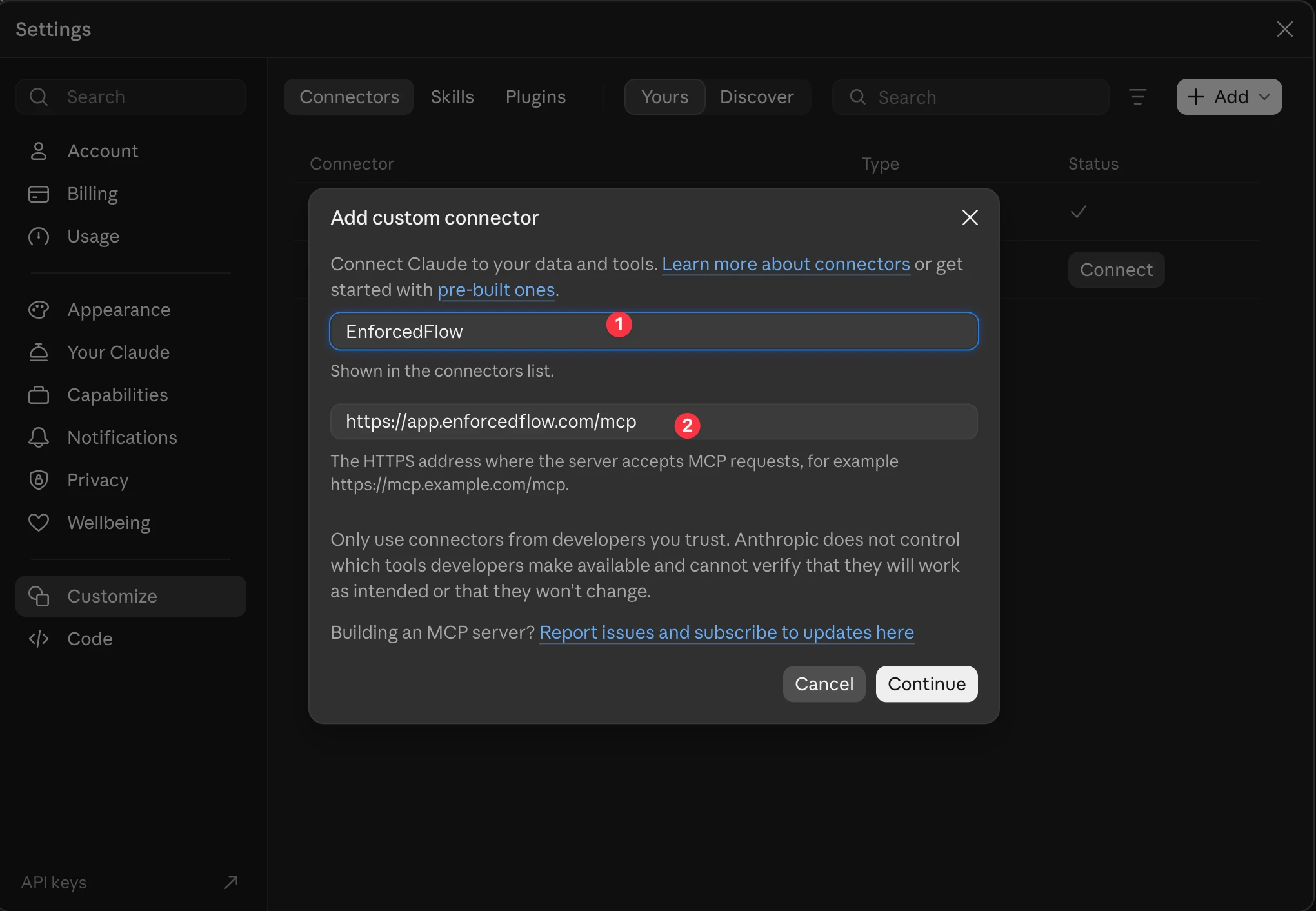
- Check the name and URL, then click Continue. Leave any OAuth client ID and secret empty. If Claude asks how it should identify itself, choose Use Claude’s published identity
- Click Connect next to EnforcedFlow, then sign in to EnforcedFlow and click Allow
On a Team or Enterprise plan, an Owner adds it for the organization from Organization settings > Connectors > Add > Custom, with the same URL and no client ID or secret. Members then find it under Customize > Connectors, marked Custom, and click Connect.
Use It on Your Phone
Section titled “Use It on Your Phone”Claude’s mobile apps use the connectors you add in claude.ai or Claude Desktop. Connect EnforcedFlow there once, and it’s in your conversations on your phone too.
Connect Claude Code
Section titled “Connect Claude Code”Add the server, from your terminal:
claude mcp add --transport http enforcedflow https://app.enforcedflow.com/mcp
Then, in Claude Code, run /mcp, choose enforcedflow and sign in to EnforcedFlow in the browser that opens.
If you sign in to Claude Code with your Claude account, the connectors you add in claude.ai are in Claude Code too.
Sign In and Allow
Section titled “Sign In and Allow”When you connect, Claude opens EnforcedFlow’s sign-in page: in the same tab in claude.ai, and in your browser from Claude Desktop.
- Sign in to EnforcedFlow, or create an account
- EnforcedFlow asks Allow Claude to use EnforcedFlow?, naming the assistant, where it comes from (claude.ai) and the account you’re signed in as. Not the right account? Click Switch account
- Click Allow to connect Claude, or Cancel to stop
Claude then goes back to its conversation, connected. It never sees your password or any access key: it gets a sign-in of its own, which works only for EnforcedFlow’s connector and ends when you disconnect it.
Use It in a Conversation
Section titled “Use It in a Conversation”In a chat, select + in the message box, then Connectors, and make sure EnforcedFlow is turned on. Then ask Claude for what you want, for example:
- Help me set up a round robin group in EnforcedFlow. Ask me how my leads should be routed, then guide me through it step by step.
- Send leads from California and Nevada to Maya, and every other US lead to Sam.
- Who would get a lead from Texas in my Inbound Sales group right now, and why?
- Turn Alex off in my Support group while she’s on vacation.
- How do I send the leads from my website form to this group?
Claude can ask for your approval before it uses one of EnforcedFlow’s tools: select Allow once, or Always allow to skip the question for that tool from now on. EnforcedFlow’s tools also tell Claude to show you its plan and get your yes before it changes anything, and a delete always waits for your confirmation.
What Claude Can Do
Section titled “What Claude Can Do”With EnforcedFlow connected, Claude can:
- Read your account: your plan and this month’s usage, your routing groups, their fields and agents, and the timezones it can use
- Set up a routing group in one go: check a whole setup first, without changing anything, show you what it would create, then create it once you agree
- Build and change routing groups: create a group, rename it or choose the information each agent holds (such as an email address), add and change its fields and agents, turn agents on or off, and turn a territory written in plain words (zip codes, counties, states) into an agent’s territory
- Delete a routing group, a field or an agent, only after you confirm: it first shows you what would be deleted, and deletes only when you say yes
- Test your routing: preview who a sample lead would go to, and why, without changing anything
- Hand off: list your access keys, create a new one, and explain how to send leads to a group through the REST API, email, Zapier, Make or n8n
- Read EnforcedFlow’s docs, to learn how routing works
Claude never sees an access key, and never asks you for one in the chat. When an integration needs a key, it tells you where to copy it in the dashboard.
Disconnect Claude
Section titled “Disconnect Claude”To end Claude’s access at once, go to your profile page in EnforcedFlow. Under Connected AI assistants, click Disconnect next to Claude. Claude’s next call to EnforcedFlow is refused. You can connect it again at any time.
To remove the connector from Claude itself, go to Customize > Connectors, select EnforcedFlow under Your connectors, and select Disconnect, or Remove from its three-dot menu. On a Team or Enterprise plan, an Owner removes it for the organization from Organization settings > Connectors.
Privacy and Security
Section titled “Privacy and Security”- Claude reaches your EnforcedFlow account only through the tools above, as you, and only after you click Allow
- Each connection’s sign-in is checked on every call, so a disconnect ends it at once. It also ends if you change your password
- EnforcedFlow records which tool each call used, its outcome and when it ran, not what was sent
How we collect, use and protect your information is in our Privacy Policy.
Need Help?
Section titled “Need Help?”Contact us at contact@enforcedflow.com, or through Help & Support in the app.